
Editing Apps for Great Content
- Brianna Mckissack-Martin
- Jan 27, 2019
- 4 min read

Every time I check the billing statement for the month I almost shed a tear for the $20 that is whisked away to pay for my student Adobe Suite. Now, that's not to say that I don't think it is an essential application for every photographer of all levels, but it can be hard to let go of that money if you aren't ready to dive into teaching yourself the ins-and-outs of Photoshop and Bridge. There are times where even I don't have the time or energy to properly use these apps to edit and organize my photos so I found apps to help make my day, and yours, a little easier. I, like most people who have too much time on their hands, use social media to post most of my images and concepts. This means that only a certain amount of quality is actually being seen from both sides of the screen so I don't have to worry about using apps that process images with huge resolutions. The resolutions built into the apps below should be great for every level of photographer. The first step to using any of these apps is to upload your raw images or jpegs to Google Drive. Download the Google Drive app to your phone, if it is not already in your applications library, and then download your images to your photo library. Now your photos have been transferred directly from your camera to your phone without any loss in quality which is key for anyone willing to showcase their art as if they used Adobe Suite.
Unfold
Unfold is an app that doesn't necessarily add onto your photos, rather it stylizes them into the collages of today. Collages can feel outdated and over used especially when posting your images to Instagram which has a streamlined design to highlight minimalistic feeds and photos. This app takes that outdated concept and gives it new life that will turn your photographs into small masterpieces. The last thing you want to do is take a high-resolution, DSLR camera image and turn it into a pre-school macaroni project. Unfold is free with add-on templates that cost less than a pack of gum. The app also allows you to organize and date your projects if you are craving the structure that Adobe Bridge provides. All of the templates are easy to use with low fuss, so it keeps you from making your projects to busy and distracting from the high quality photos.





Afterlight
Afterlight is an app that almost any influencer has talked about or used on Instagram and Twitter. This app allows you to edit the color, light, exposure, filters, and text you can apply to your images. Although it offers a wide array of capabilities I would be careful to use them all for your professional images. I personally use this app to crop, straighten, flip, and add light distressing to photos that don't need much post-production. It is fun to explore all the little applications it has to offer but don't get too carried away or you could damage the resolution and quality of your photo. I won't go in to much depth on how to use these apps as they have very accessible interfaces and there are plenty of online tutorials out there already that could explain much better than me.








VSCO
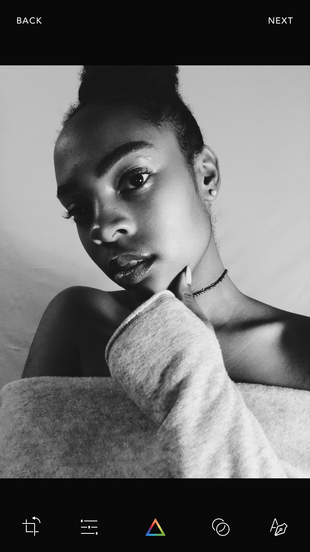
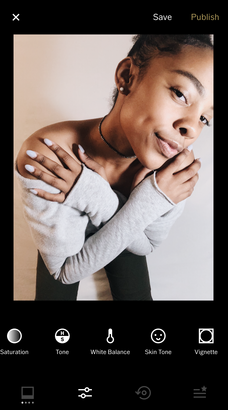
VSCO is another very popular app that mimics the organization of Bridge and the photo editing capabilities of Photoshop all-in-one. You can download your photos to this app directly from Google Drive so that you don't have to waste your iCloud or Samsung Cloud memory space with large files of images. There is so much more to this app than editing capabilities, but for this post we will focus on just the editing. You can adjust white balance, exposure, shadows, contrast, and saturation at similar caliber of Adobe Photoshop. It makes quick color corrections stress free and allows you to edit RAW images as well to avoid loss of resolution and file size. You can create presets and apply your settings to multiple photos at once to cut down post production time as well. My favorite feature is being able to see the history of the settings you've applied so you can go back and fine tune any adjustments without having to start all over again.

UNUM
This app is easier to use than it is to figure out how to pronounce. UNUM won't let you edit your photos, but it will let you organize them in a way that Bridge isn't quite able to. You can take your ready-to-post photos and upload them to this app to see how they would appear on your Instagram feed! This is one of my top favorite apps, as I like to make sure my posts are curated and flow nicely together so that each image looks as if they belong together. With UNUM you can link your current, live Instagram feed and upload photos to see how they will look in queue. It also allows you to monitor how your posts are doing with analytics and graphs to show you the reach of your social media. You can move the potential posts around so you can see which would be better suited and set reminders to post on the days that UNUM registers as your most productive.


Comments